
Pinterest. It’s a real feast for the eyes, isn’t it? A place where ideas just sprout, and inspiration? It’s always just a scroll away. You’ll find content everywhere you look, from gorgeous home decor ideas to super practical DIY tutorials. But the native “save” function often doesn’t quite cut it when you need to grab a video, a specific image, or a lively GIF for outside the app – maybe for offline access, a personal project, or simply to keep it forever.
Many of us find ourselves needing a local copy of a captivating Pinterest video. Perhaps it’s for a mood board, or to share something without relying on an internet connection. Screenshots or screen recordings? They just won’t cut it for quality, especially for videos and animated GIFs. That’s precisely why a Pinterest video download tool like Pinpea is getting popular.
The challenge of saving Pinterest content offline
Pinterest, by design, keeps you in its app. Sure, you can “Pin” stuff to your boards. But that doesn’t actually download the media to your device. What if the original creator deletes a Pin? Poof, it’s gone from your board too. Or maybe you’re somewhere without the internet, suddenly unable to see all your saved inspirations. Creators and students building a visual archive often need more than a saved Pin. They need a Pinterest image download they can place in a folder and open without going back to the app.
And getting a true animated GIF from Pinterest? Not just a converted video file? That’s a common stumbling block, frankly. Most generic downloaders either skip GIFs entirely or turn them into MP4s, which just loses their original charm and utility. A good Pinterest downloader really needs to handle all content types with fidelity.
The same idea applies to content found on other platforms. For example, a Twitter photo downloader is made for saving pictures from public posts on X, while Pinpea is designed for Pinterest links.
How to download Pinterest videos and images with Pinpea
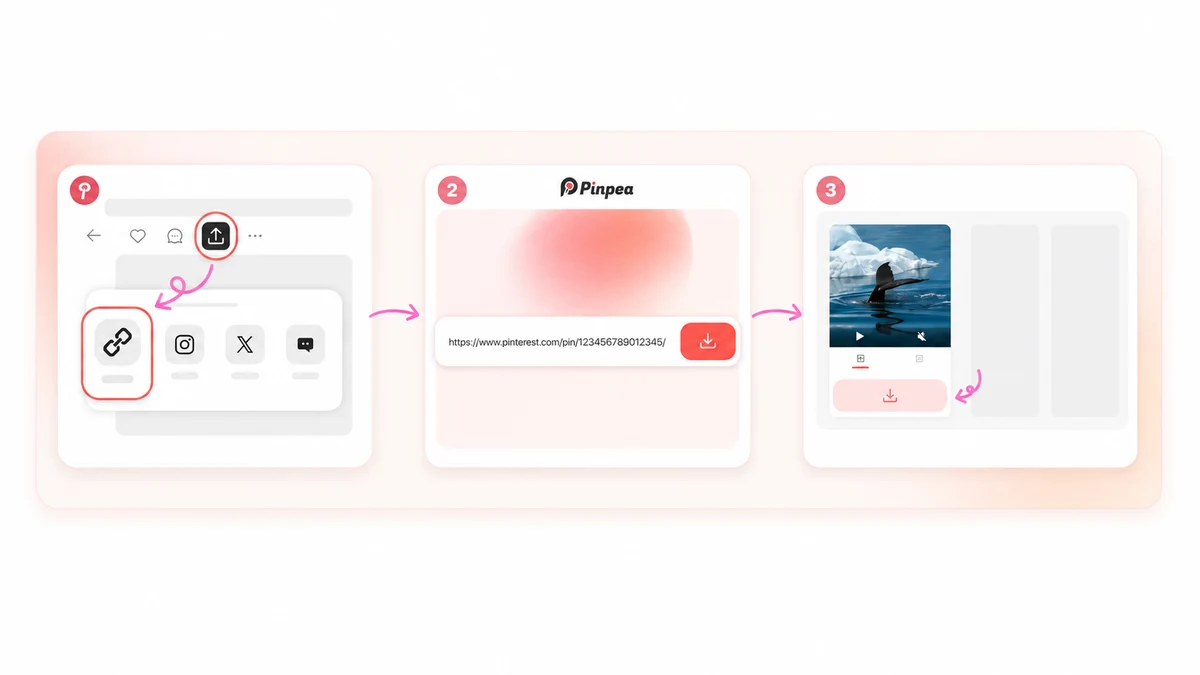
Pinpea makes it easy to get high-quality Pinterest content onto your device. It’s a browser-based tool, so no installation or account creation is needed. Pretty smooth, right? Here’s a straightforward guide to using this efficient Pinterest video downloader.
Step 1: Locating your Pinterest content
First things first, open up the Pinterest app or website. Then, navigate to the exact video, image, or GIF you want to download. Just make sure it’s publicly accessible. Pinpea, like any decent downloader, won’t touch private boards, content that requires a login, deleted Pins, or multi-Pin share links.
Step 2: Copying the link
Once you have the content open, find that “Share” button. On mobile, it’s usually an arrow or three dots. Tap it, then select “Copy Link.” If you’re on a desktop browser, you can just copy the URL directly from your browser’s address bar. This link tells Pinpea what you’re after.
Step 3: Pasting into Pinpea
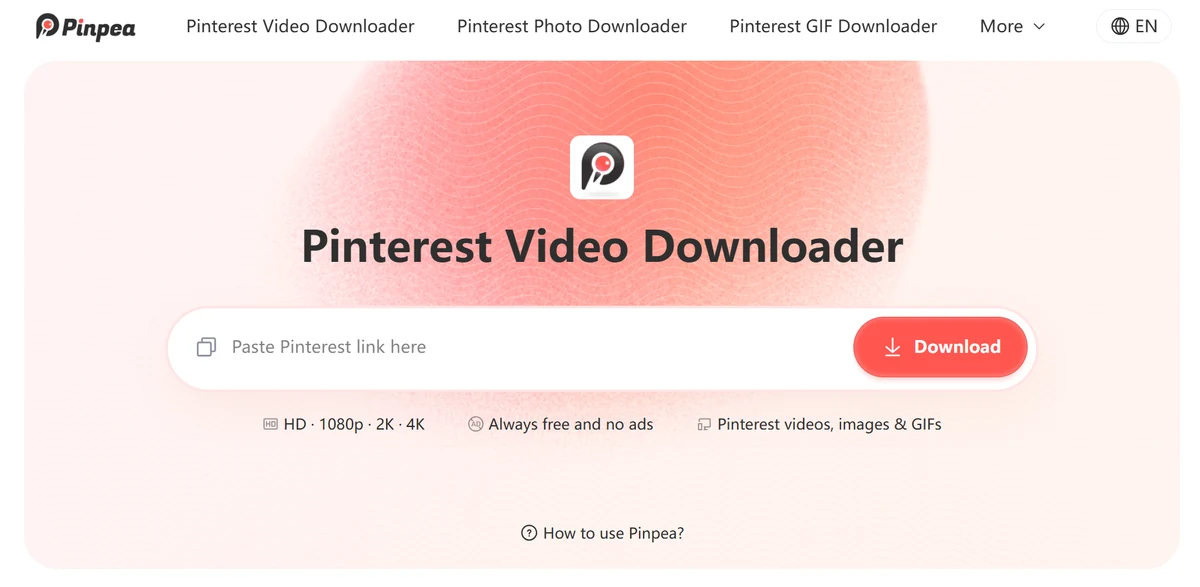
Now, open your web browser and head over to Pinpea. Its interface is clean, just a big input box waiting for your link. Paste the Pinterest link you just copied directly into this field. Here’s a neat thing: Pinpea often starts grabbing automatically. You often don’t even need to click a separate “Download” button after pasting, as it begins processing the link almost instantly.
Step 4: Downloading your media
After Pinpea processes the link, it’ll show you your download options. For videos, you’ll typically see MP4 format at the highest resolution available – sometimes up to 2K or 4K, depending on the original upload. Images? You’ll get their original format. Pinpea really shines here for GIFs; it delivers actual animated GIF files, keeping them dynamic instead of converting them to video. Just select your preferred quality or format, then click the download button to save the file to your device’s downloads folder or photo gallery.
What to check before and after downloading
Before you click ‘Download’ – and even after – a quick check can save you some grief. Ensuring your downloaded content meets your expectations is simple with a few considerations.
Before initiating the download
- Source Quality: Always check the quality of the original Pinterest content. If the original Pin is blurry, Pinpea can only download that. It won’t magically make it look better, you know? Pick Pins that are already sharp.
- Content Type: Double-check if you’re trying to download a video, a static image, or an animated GIF. Pinpea handles all three, sure. But knowing the type helps you guess what format you’ll get.
- Public Accessibility: Like we said, private content is off-limits. Make sure the Pin is public and doesn’t belong to a deleted account or a restricted board. Saves you a failed download.
After the download is complete
- File Format Verification: For videos, confirm it’s an MP4. Static images should be in their original image format. For GIFs, verify that it’s a true animated GIF and not some converted MP4 file. Pinpea’s great for real GIFs, a big win.
- Resolution Check: Open the downloaded file and check its resolution. If the original was 1080p, 2K, or even 4K, Pinpea should deliver it at that quality, keeping it looking just right.
- Playback Test (Videos & GIFs): Play the video or GIF. Make sure it plays smoothly and that any audio track (for videos) is intact and synchronized. Pinpea tries to get the original audio, untouched.
Beyond videos: Pinpea’s broader capabilities
Sure, folks often think about downloading Pinterest video content first. But Pinpea’s a handy tool for all Pinterest media. Its ability to handle images, videos, and especially true GIFs in their original animated format really sets it apart. Just paste a link, and boom: the content’s ready to download. No extra clicks. Makes things super smooth.
Plus, it’s PWA-enabled too. So you can slap it right on your phone’s home screen. That means it feels like an app, without needing to hit the app store – especially useful for iOS users who don’t have a dedicated Pinpea app. Android users do have a native app option, ensuring broad accessibility. And here’s a good one: no watermarks, no hidden fees. Just tells you they’re all about the user.
Why Pinpea stands out for Pinterest downloads
So many tools out there claim to do this stuff. But Pinpea? It really stands out. Why? Simple: it just works, and it works well. It actually fixes those annoying problems Pinterest users often hit: getting real GIF downloads, keeping high-resolution video and images, and offering a really simple experience. No logins, no subscriptions, just efficient downloading.
Need to save Pinterest content offline, for a project, or just to keep it? This tool’s a solid bet. Plus, it works on pretty much any browser, any device, thanks to PWA. So it’s a handy, powerful bit of kit for your Pinterest media.